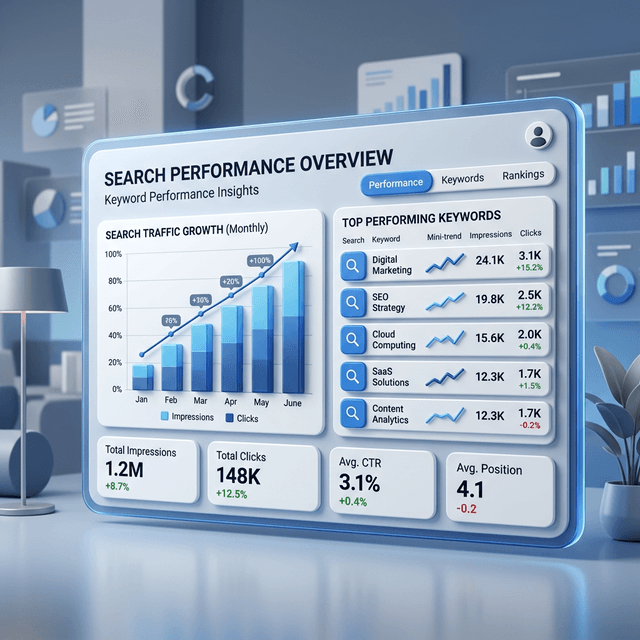

If you want to know what keywords you rank for in Google, start with Google Search Console. It gives you the closest thing to a direct answer because it shows the real queries that triggered impressions and clicks for your site in Google Search.
If you would rather connect the source data and move directly into prioritized opportunities, use the Google keyword rank checker powered by your own Search Console data. It does not invent anonymous ranking results; it waits for access to a property you control.
The mistake is stopping at the export. The real value comes from knowing which queries matter, which ones are misleading, and which ones point to your next best SEO move.
In this guide
- How to find your ranking keywords in Search Console
- What clicks, impressions, CTR, and average position actually mean
- How to find quick-win queries worth acting on
- How to turn ranking data into content and optimization work
The Short Answer
To see what keywords you rank for in Google:
- Open Google Search Console.
- Go to Performance.
- Turn on clicks, impressions, CTR, and average position.
- Open the Queries tab.
- Review the search terms that generated impressions for your site.
That gives you the list. Now you need to interpret it correctly.
Why Search Console Is the Best Starting Point
Third-party SEO tools estimate rankings from their own databases. Search Console shows your actual search performance in Google.
That means you can see:
- which queries generated impressions
- which queries generated clicks
- what average position looked like
- which pages appeared for each query
For your own site, this is usually the best first source of truth.
Google’s Search Console documentation also explains that the Performance report lets you filter and compare data by query, page, country, device, and more. That makes it useful for both discovery and diagnosis.
How to Find the Keywords You Rank For
Step 1: Open the Performance Report
Inside Search Console, open the Search results performance report.
Turn on:
- Total clicks
- Total impressions
- Average CTR
- Average position
Then scroll down to the Queries table.
That table shows the search terms your site appeared for in Google.
Step 2: Use a Meaningful Date Range
The default range can be fine for a quick check, but better decisions usually come from comparison.
Try:
- last 28 days
- last 3 months
- compare last 28 days vs previous 28 days
This helps you separate one-off noise from real movement.
Step 3: Look at Queries and Pages Together
Do not review queries in isolation.
Click a query and then switch to the Pages tab. This shows which URL is ranking for that term.
That is how you identify:
- the right page for the query
- the wrong page ranking
- potential keyword cannibalization
- content that deserves a dedicated page
What the Metrics Really Mean
Impressions
Impressions tell you how often your site appeared in search results for a query.
A query with impressions but no clicks still matters. It means Google already associates your site with the topic.
Clicks
Clicks tell you which queries are already sending traffic.
Those terms are often your most practical optimization opportunities because there is proven demand and proven visibility.
Average Position
Average position is useful, but only if you understand its limits.
Google’s own documentation explains that average position reflects the average placement across all appearances, not one exact live ranking. Your manual search may show a different spot depending on location, device, and personalization.
That is why you should treat average position as a trend signal, not a daily scoreboard.
CTR
CTR tells you how effectively your listing turns impressions into visits.
Low CTR with strong impressions usually points to:
- weak title tags
- weak meta descriptions
- poor query match
- a SERP with heavy features pushing clicks down
Which Ranking Keywords Matter Most
Not every keyword you rank for deserves action.
Focus on queries that are:
- relevant to your business or content goals
- getting impressions or clicks
- already close to page one
- mapped to a page that can realistically improve
That usually leads to three high-value groups.
1. Position 4 to 15 Queries
These are often your quickest wins.
Google already sees your page as relevant. A stronger title, better section coverage, fresher examples, or better internal links may be enough to move the page higher.
2. High-Impression, Low-CTR Queries
These are visibility opportunities.
If the page is already appearing often, improving the snippet and first-screen relevance can unlock more clicks without needing a brand-new page.
3. Unexpected Relevant Queries
Sometimes Search Console shows terms you were not deliberately targeting, but should be.
That can signal:
- a hidden content opportunity
- a missing dedicated page
- a broader cluster worth building
This connects directly to smarter SEO topic selection and content briefs that rank.
How to Filter Search Console for Better Insights
Use filters to answer more precise questions.
Filter by Query
Use this to review:
- brand terms
- product terms
- service terms
- problem-aware queries
Filter by Page
Use this to see every query attached to one URL. This is useful when refreshing a page or checking whether Google sees it for the intent you expected.
Filter by Device
Some queries perform very differently on mobile and desktop. If a page is weaker on mobile, that may point to layout, snippet, or intent fit issues.
Filter by Country
This matters if your audience is regional or multilingual. The same page can perform very differently by market.
How to Turn Ranking Keywords Into SEO Actions
Once you have the data, choose one of these paths:
Refresh an Existing Page
Do this when the right page exists but underperforms.
Best for:
- slipping rankings
- weak CTR
- missing subtopics
- stale examples
Build a Dedicated New Page
Do this when a promising query appears, but your site does not yet have a clear page that fully matches the intent.
Improve Internal Links
Do this when the page is relevant but lacks support from related content.
Your best supporting sources are often older posts already discussing the same concept. That is why pages like internal linking SEO guide and content refresh strategy matter in the workflow.
A Search Console Workflow You Can Repeat Weekly
- Export top queries from the last 28 days.
- Sort by impressions and position.
- Highlight queries in positions 4 to 15.
- Highlight high-impression queries with weak CTR.
- Match each query to the right page.
- Decide: refresh, create, merge, or strengthen links.
This is one of the fastest ways to turn ranking data into action instead of passive reporting.
If you want a more operational version of this system, use Agentic SEO and Google Search Console quick wins.
Mistakes to Avoid
Chasing Every Query
Some ranking keywords are irrelevant, low-intent, or too broad to matter. Focus on opportunity, not novelty.
Reading Average Position Too Literally
Search Console does not show a perfect live ranking snapshot. Use trend windows and query-level context.
Ignoring the Page Behind the Query
The same keyword list means very different things depending on which page ranks for it.
Treating Impressions as Failure
If a query has impressions but no clicks, that is not useless data. It often means you are one iteration away from a real opportunity.
Ready to Automate Your SEO?
AgenticSEO helps you turn ranking queries in Search Console into prioritized content updates, internal linking tasks, and faster SEO wins.
Connect your site to the AgenticSEO keyword rank checker
Create your free AgenticSEO workspace to connect a verified Search Console property and keep the opportunities in one workflow.
Frequently Asked Questions
How do I see what keywords my site ranks for in Google for free?
Use Google Search Console. Open the Performance report and review the Queries tab with clicks, impressions, CTR, and average position enabled.
Why do I rank for keywords I never targeted?
Google often associates pages with related queries beyond the exact phrase you optimized for. That can reveal hidden opportunities or show that your page is matching a broader topic than you expected.
Why does Search Console show one average position while my manual search shows another?
Because Search Console reports an average across many impressions. Your live search result can vary by device, location, and personalization, so the number will not always match a manual check.
Key Takeaways
- Search Console is the best place to find the keywords your own site ranks for in Google.
- Query data becomes useful when you pair it with pages, filters, and comparison windows.
- Position 4 to 15 keywords and high-impression, low-CTR queries are often the best opportunities.
- Ranking data should drive action: refresh, create, merge, or strengthen internal links.